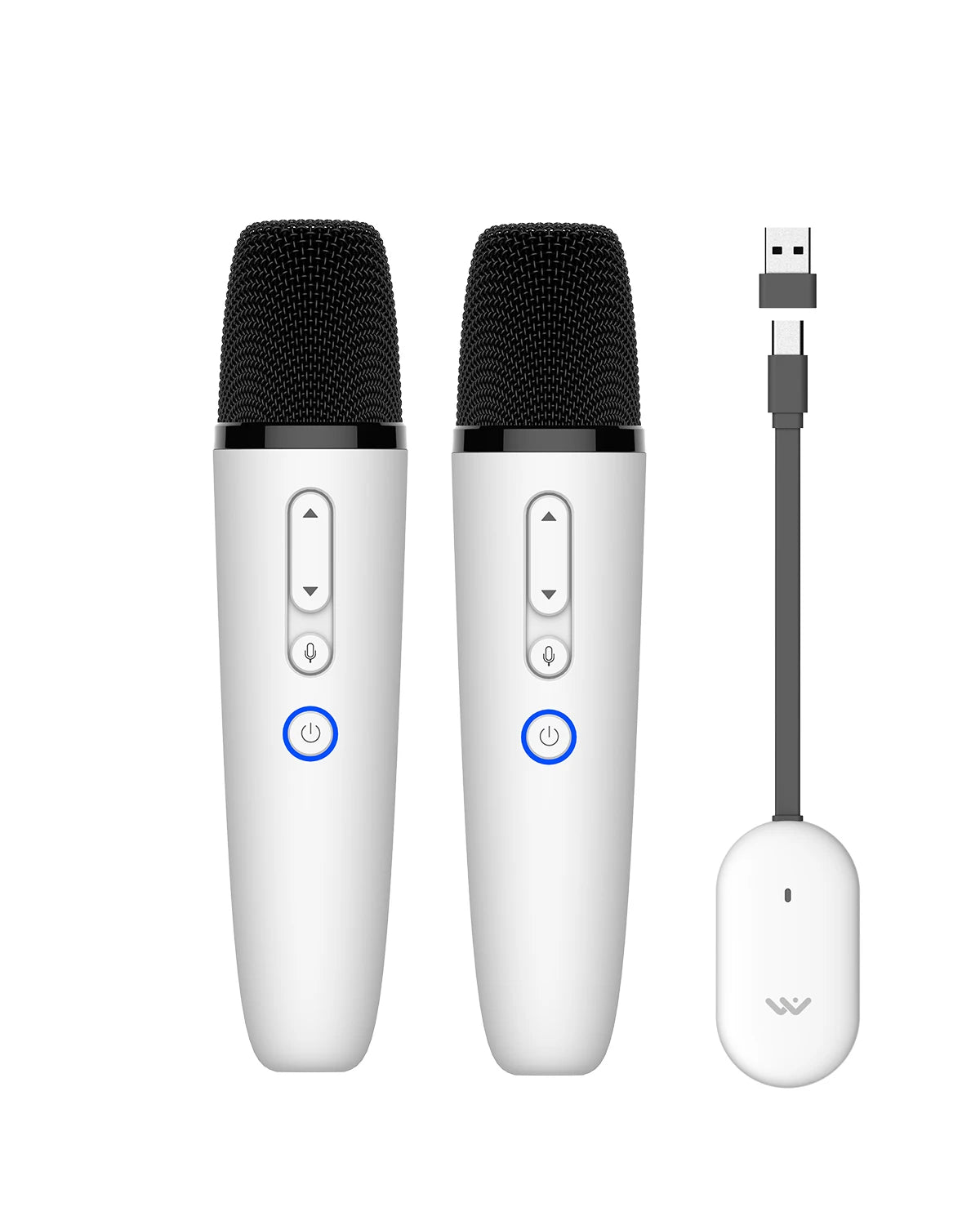
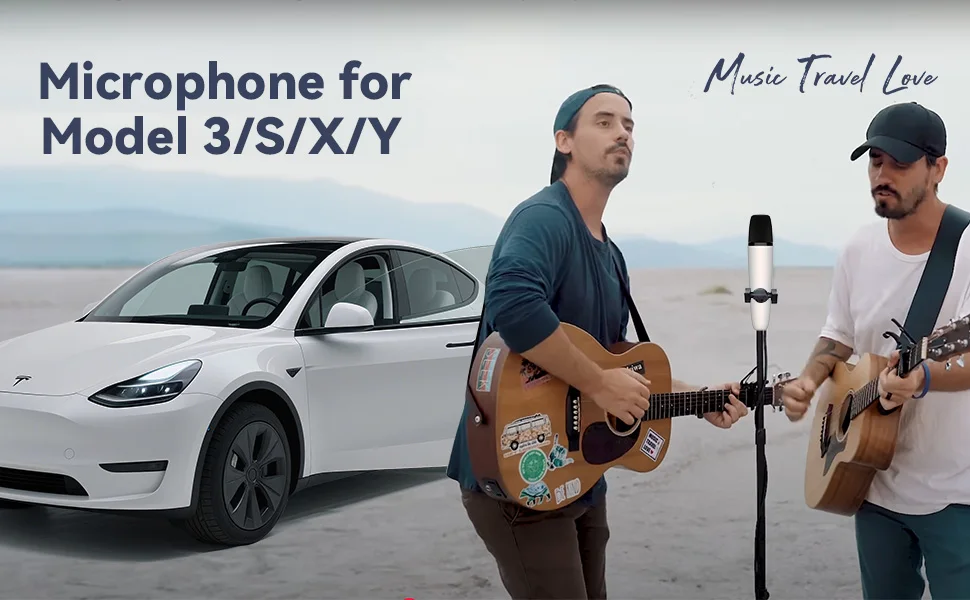
T1 Tesla Car Karaoke Microphone – Rechargeable Wireless Mic with USB-A & USB-C Receiver, Plug-and-Play No Pairing Required
T1 Tesla Car Karaoke Microphone – Rechargeable Wireless Mic with USB-A & USB-C Receiver, Plug-and-Play No Pairing Required
No se pudo cargar la disponibilidad de retiro
397 en existencias
SPECIFICATIONS
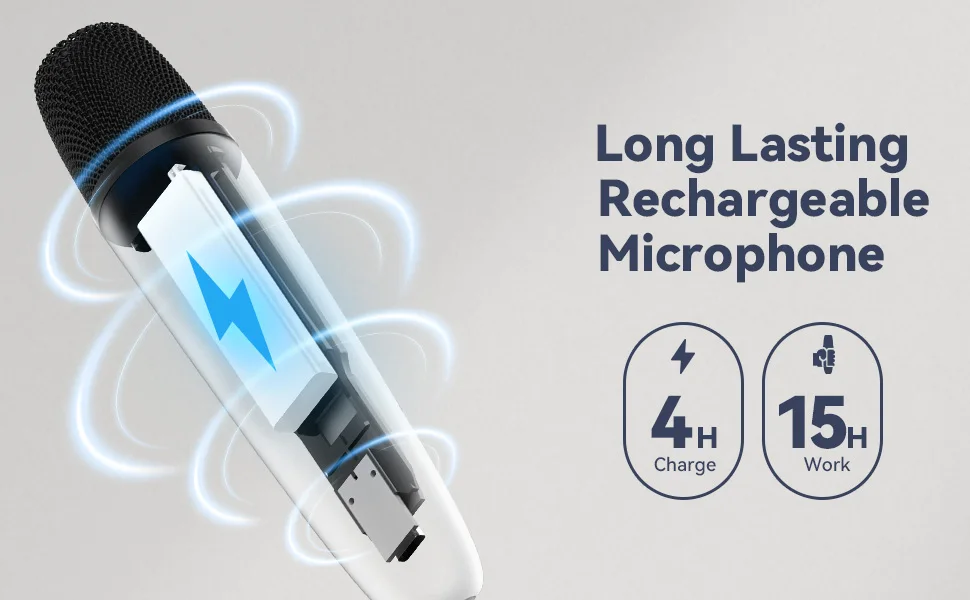
Battery Type: Lithium ion
Brand Name: LvDonic
Built-in Battery: Yes
Communication: WireLess
Diaphragm: S-Mall
Enclosure material: Plastic
Frequency response: 50hz
High-concerned chemical: None
Origin: Mainland China
Package: Yes
Polar Patterns: Cardioid
Set Type: Transmitter Sets
Style: Handheld Microphone
Transducer: Dynamic Microphone
Use: Karaoke Microphone
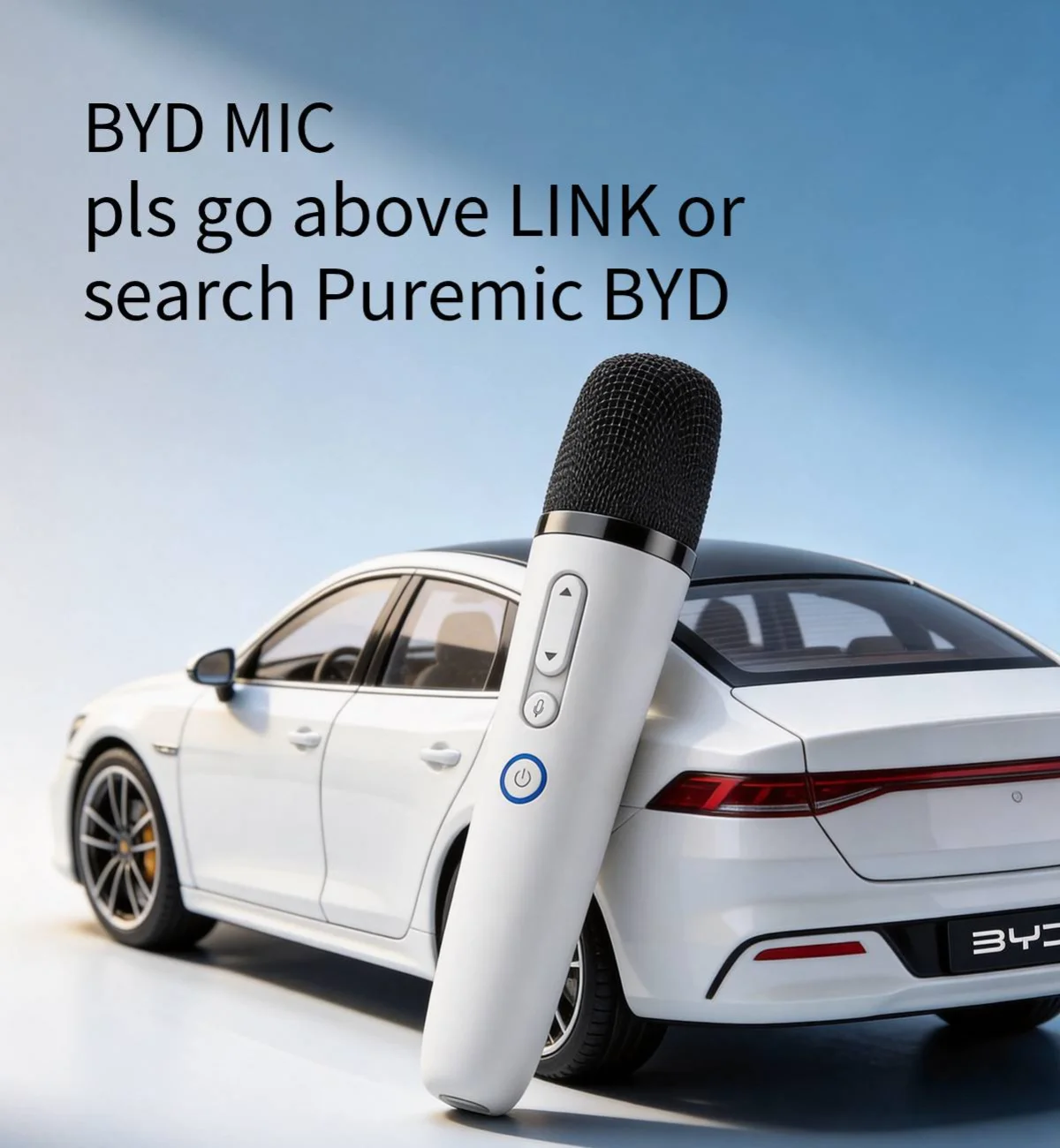
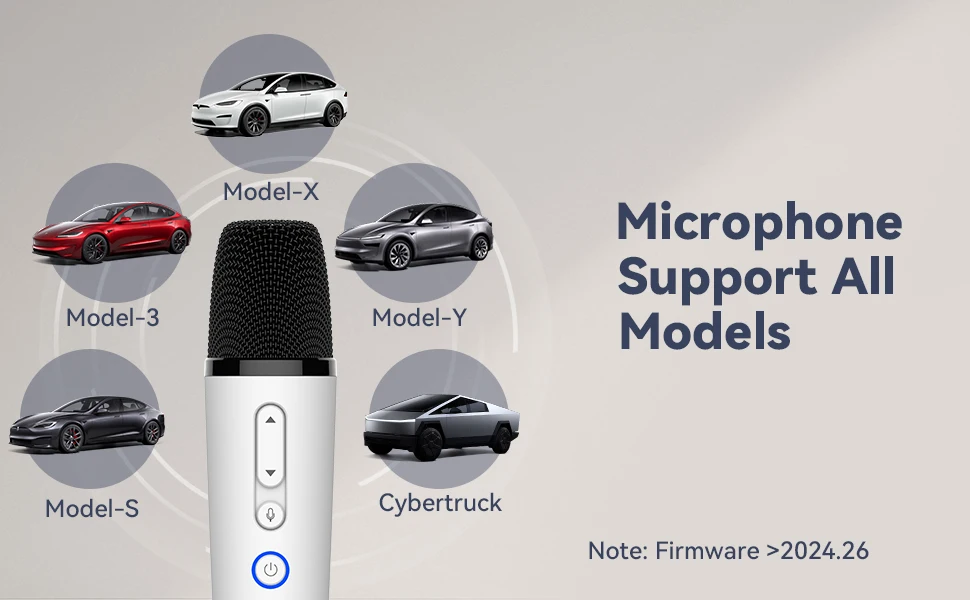
This microphone sold via this listing is only compatible with Tesla vehicles. If you need to purchase a microphone for BYD cars, please click the link below to buy::
https://www.aliexpress.com/item/1005006235481500.html?gatewayAdapt=glo2ita
Step 1
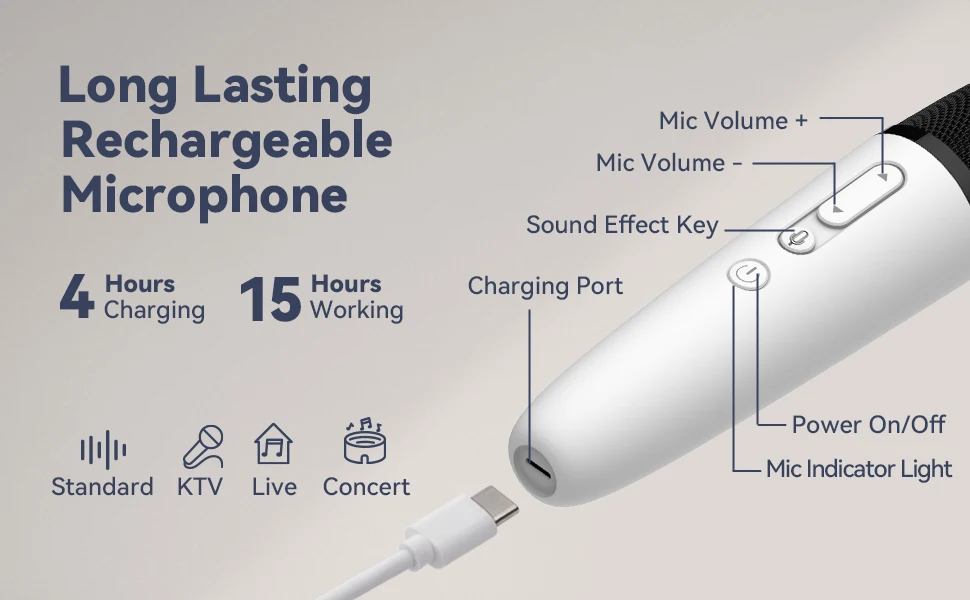
With the receiver plugged in and the microphone is off state, long press the "Voice Key" and "Power Key" simultaneously for more than 8 seconds, the microphone indicator light flashes, into the pairing state (microphone close to the receiver within half a mete, there should be no obstructions between them)
Step 2
Re-plug the receiver and wait for the receiver indicator light blinks fast
Step 3
When the receiver light is flashing, press the "Power Key" and "Voice Key" at the same time to exit the pairing mode. At this time, the microphone indicator light stays on, and the receiver indicator light stays on to indicate that the pairing is complete.
Method for Pairing Dual Microphones
Step 1
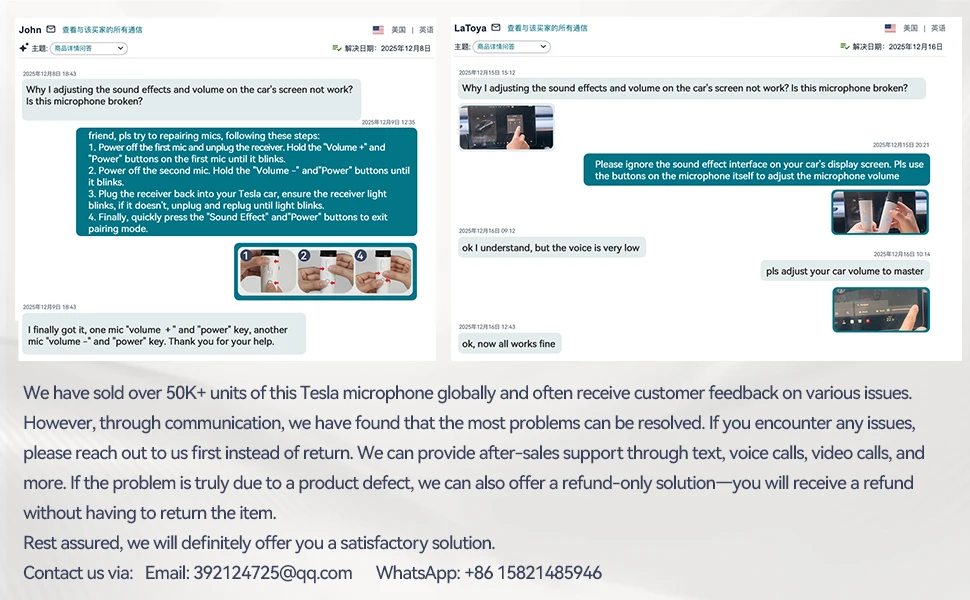
With the receiver plugged in and the microphone is off state, long press the "Volume+Key" and "Power Key" simultaneously of one microphone for more than 8 seconds, the mice indicator light flashes, into the pairing state
Step 2
The other microphone in the off state, at the same time long press "Volume- Key" and "Power Key" simultaneously for more than 8 seconds, the mic indicator light flashes, into the pairing mode (microphone close to the receiver within half a met, there should be no obstructions between them)
Step 3
Re-plug the receiver and wait for the receiver indicator light blinks fast
Step 4
Press the microphone in Step 1, and press the "Voice Key" and "Power Key" at the same time to exit the pairing mode; The same method as above for the microphone in Step 2
Step 5
If both microphones and receiver indicators are stay on, the pairing is complete and you can use it normally.